
Pulse is a tool available to RICS>Pay customers which is used to view transaction details, report on processed payments, view monthly statements, and more. Follow the steps below to login to Pulse from the RICS Back Office.
1. Login to the RICS Back Office
2. Navigate to Setup :: Manage Store :: Setup Settings
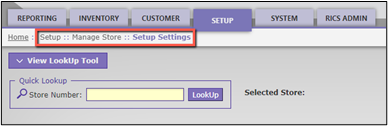
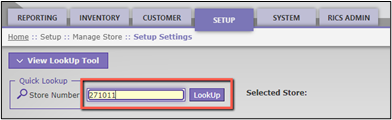
3. Enter your RICS Store Number; Click ‘LookUp’
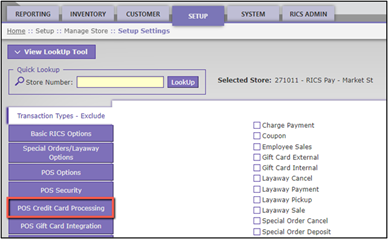
4. Click ‘POS Credit Card Processing’
5. Click 'Login to MerchantTrack'
Note 1: This will open a new tab, where you will be directed to Pulse.
Upon initial login to Pulse, you may be directed to the RICS>Retail Portal. From the portal you can select the location you'd like to login to then click Settings and Login to MerchantTrack.
If pop-ups are not enabled in your browser, it may be necessary to enable that setting to be redirected to Pulse.
Note 2: Users accessing Pulse for the first time are required to have an email address and phone number associated with their user profile. If prompted, you can add these on the Setup :: Users :: Manage Users page and then click Save.
Comments