
Pulse is a tool available to RICS>Pay customers which is used to view transaction details, report on processed payments, view monthly statements, and more. Follow the steps below for some common
MERCHANT STATEMENT AND REPORT EXPLORER
Login to Pulse
- Login to the RICS Back Office
- Navigate to Setup :: Manage Store :: Setup Settings
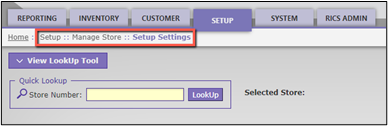
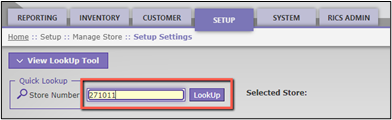
- Enter your store level RICS Store Number; Click ‘LookUp’
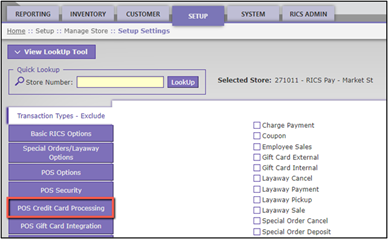
- Click ‘POS Credit Card Processing’
- Click 'Login to MerchantTrack'
Note 1: This will open a new tab, where you will be directed to Pulse.
Upon initial login to Pulse, you may be directed to the RICS>Retail Portal. From the portal you can select the location you'd like to login to then click Settings and Login to MerchantTrack.
If pop-ups are not enabled in your browser, it may be necessary to enable that setting by clicking the pop-up blocker icon in the URL bar in order to be redirected to Pulse.
Note 2: Users accessing Pulse for the first time are required to have an email address and phone number associated with their user profile. If prompted, you can add these on the Setup :: Users :: Manage Users page and then click Save.
Transaction Search
It may be necessary to view the details of a RICS>Pay transaction to verify payment was processed successfully or view funding details. Follow the steps below to view transaction details for specific transaction.
- Login to Pulse
- Click Transaction Search on the left side of the screen
- On the Transaction Search screen, click 'More Filters' in order to open the additional search filters window.
- Enter the Transaction ID into the appropriate field and click 'Done.' The Transaction ID can be found at the bottom of the receipt or in the customer’s purchase history
Note: The 'Date Range' filters can be used if the Transaction ID is not known.
- Click 'Search'
- Locate the transaction from the list
Note: Transactions processed successfully will have a status of ‘Batched’.
- Click the blue Transaction ID number to view additional processing details
Merchant Statement and Reporting
The Pulse Dashboard provides quick access to your Merchant Statement where you can see an itemized detail of all of your RICS>Pay Transaction and Non-Transaction Fees.
Pulse also provides several other reporting options in the Report Explorer. Follow the steps below for guidance on finding your Merchant Statement as well as how to run other helpful reports.
Merchant Statement
- Login to Pulse
- Click on 'View' on the Merchant Statement tile
- Select the desired Month and Year in the dropdowns and click 'View'
- The Merchant Statement PDF file will begin downloading in your browser. Click 'Open File' on the download window in the top right corner to view the PDF.
- The Merchant Processing Statement will provide an overview of account activity for the statement period as well Transaction Summary by day, and itemized Non-Transaction fees.
Report Explorer
- From the Pulse Dashboard, click the Reporting dropdown and select 'Report Explorer'
- Click on desired report option. Report descriptions are given under each report type to help you determine what information a given report will display
Note: The Gift Card Operations section is only applicable to Merchants who use the ValueTec gift card integration
- Filters for each report can be applied on the report screen. Additional filters are available by clicking 'More Filters.' The resulting report can be exported as either a spreadsheet (CSV) or a PDF
Comments